 Kuruvu
Install the rider app on your phone
The Kuruvu rider app is a web app you add to your home screen. Once installed it opens full-screen like any other app, and it keeps working when you lose signal out on course.
You'll need the app link from your event organiser (something like rider.kuruvu.com) and your rider login. Do the install at home or at the start village while you still have a good connection — that's when the app caches everything it needs for offline use.
What you'll get
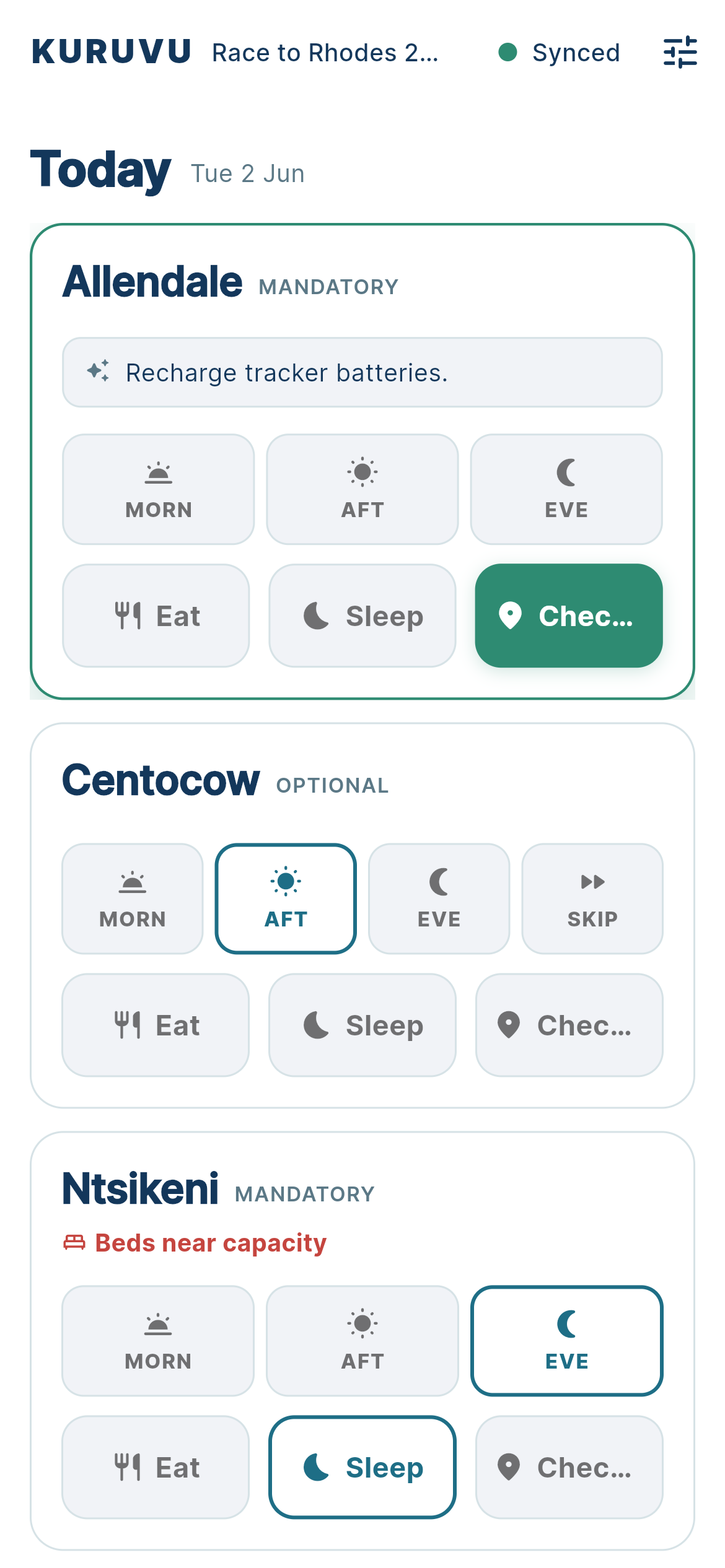
Once installed, Kuruvu opens full-screen from your home screen — no browser bar, no app store. It loads instantly and keeps working offline on course. After installing, head to Enter your daily race plan to set up your race.
Android
Use Chrome on Android (the default browser on most phones). Other Chromium browsers like Edge and Samsung Internet work the same way.
Install on Android
- Open the app link from your organiser in Chrome.
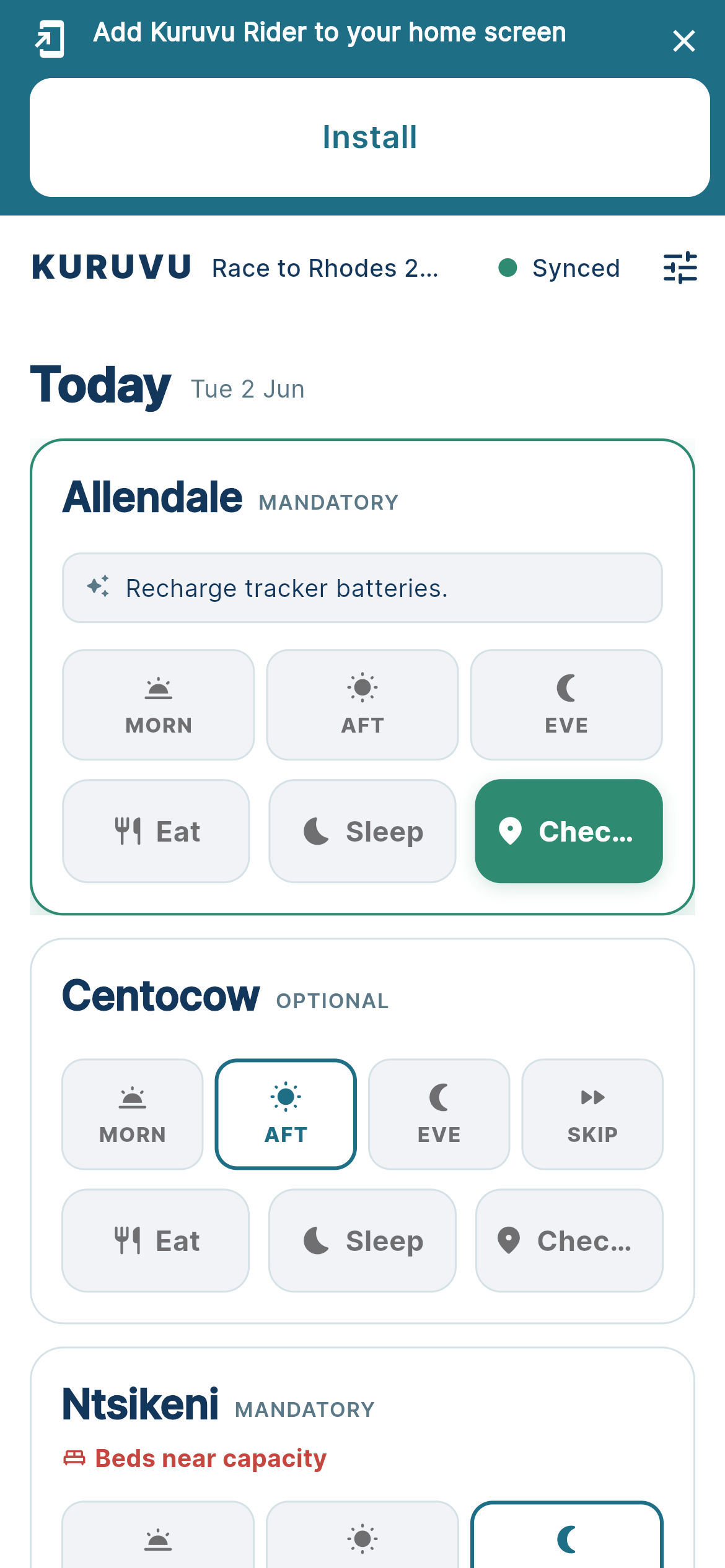
- When it loads, the app shows an “Add Kuruvu Rider to your home screen” prompt (shown here). Tap Install, confirm in the dialog, and you're done.
- No prompt? Tap the ⋮ menu (three dots, top-right), choose “Install app” or “Add to Home screen”, then confirm.
- The Kuruvu icon appears on your home screen. Open it from there — it runs full-screen, no browser bar.
- Log in once with your rider credentials so the app can sync your event before you head out.
Use a normal tab, not Incognito. Install is disabled in private/incognito windows. If you don't see the prompt or “Install app”, open the link in a regular Chrome tab and try again.
iPhone & iPad
On iPhone and iPad you must use Safari to install — Chrome and other browsers on iOS can't add web apps to the home screen. You can switch back to any browser afterwards; the installed app is independent.
Install on iOS
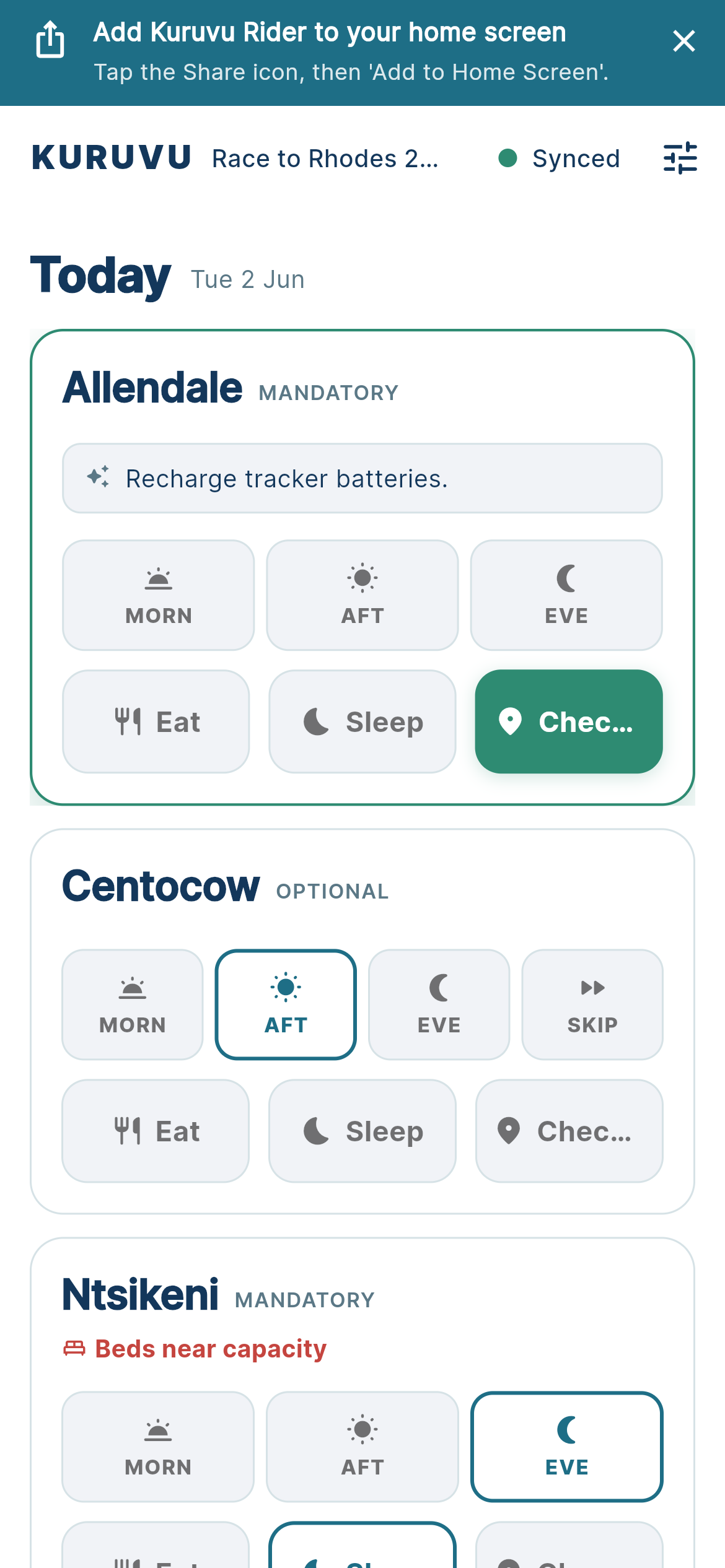
- Open the app link from your organiser in Safari. The app shows a hint (shown here) reminding you how to install.
- Tap the Share button — the square with an arrow pointing up, in the toolbar.
- Scroll down the share sheet and tap “Add to Home Screen”.
- Keep or edit the name (Kuruvu), then tap Add (top-right).
- The Kuruvu icon appears on your home screen. Open it from there — it runs full-screen, no Safari bar.
- Log in once with your rider credentials so the app can sync your event before you head out.
Must be Safari. If you don't see “Add to Home Screen” in the share sheet, you're probably in Chrome or another app's in-app browser. Copy the link into Safari and try again.
How offline mode works
The rider app is built to keep working where the race is — remote passes, valleys, anywhere the network drops. Here's what to expect:
- It caches on install. The first time you open the installed app with a connection, it stores everything it needs to run. After that it loads instantly, even with no signal.
- It works offline. Out on course with no bars, the app still opens and shows your event. You won't see a blank page or a browser error.
- It syncs when you're back. As soon as your phone reconnects, the app catches up automatically — no manual refresh needed.
- Open it before the start. Launch the app once while you still have signal at the start village so the latest event data is cached before you ride out.
Offline mode keeps the app usable, but live updates only sync when your phone has a connection. Battery and signal are still worth conserving on long stages.
Troubleshooting
I don't see an install option
On Android, make sure you're in a normal Chrome tab (not Incognito) and the page has fully loaded, then check the ⋮ menu. On iOS, make sure you're in Safari — the option lives in the Share sheet, not a menu.
The app looks out of date
The app caches hard so it can run offline. To force the latest version: open it with a connection and leave it for a few seconds, then close and reopen it. If it's still stale, delete the home-screen icon and reinstall from the link.
It won't load on course
If you installed the app but never opened it with a connection, it hasn't cached yet. Whenever you next get signal, open the app once and let it finish loading — it'll be available offline from then on.
I can't log in
You need a connection to log in the first time. Use your rider credentials from the event organiser. If they don't work, contact us or your race office.
Still stuck? Email hello@kuruvu.com and we'll help you get set up before race day.